WordPress remains the most widely used content management system worldwide, powering over 43 percent of all websites. Its flexibility, ease of use, and active open-source community make it an excellent platform for businesses and publishers of all sizes. However, that same popularity also makes WordPress a prime target for cybercriminals.
According to threat intelligence reported by Forbes in 2025, based on large-scale monitoring by web security providers, more than 1.6 million attack attempts targeting WordPress sites were recorded within a 48-hour period, highlighting the scale and persistence of automated threats. During the same year, hundreds of new WordPress plugin and theme vulnerabilities were disclosed, with plugins accounting for the vast majority of exploitable weaknesses.
The good news is that most WordPress hacks are preventable. Compromised sites often share common issues, such as weak passwords, outdated plugins, unsecured hosting environments, and lack of monitoring.
This article outlines practical, proven WordPress security tips and best practices for 2026 to help you protect your website, safeguard user data, and maintain business continuity.
- Why is Website Security Important?
- 16 Most Effective Tips to Protect Your Website From Hackers
- Use Strong Passwords
- Limit Login Attempts
- Use Two-Factor Authentication (2FA)
- Keep Your Site Up to Date
- Remove Unused Plugins and Themes
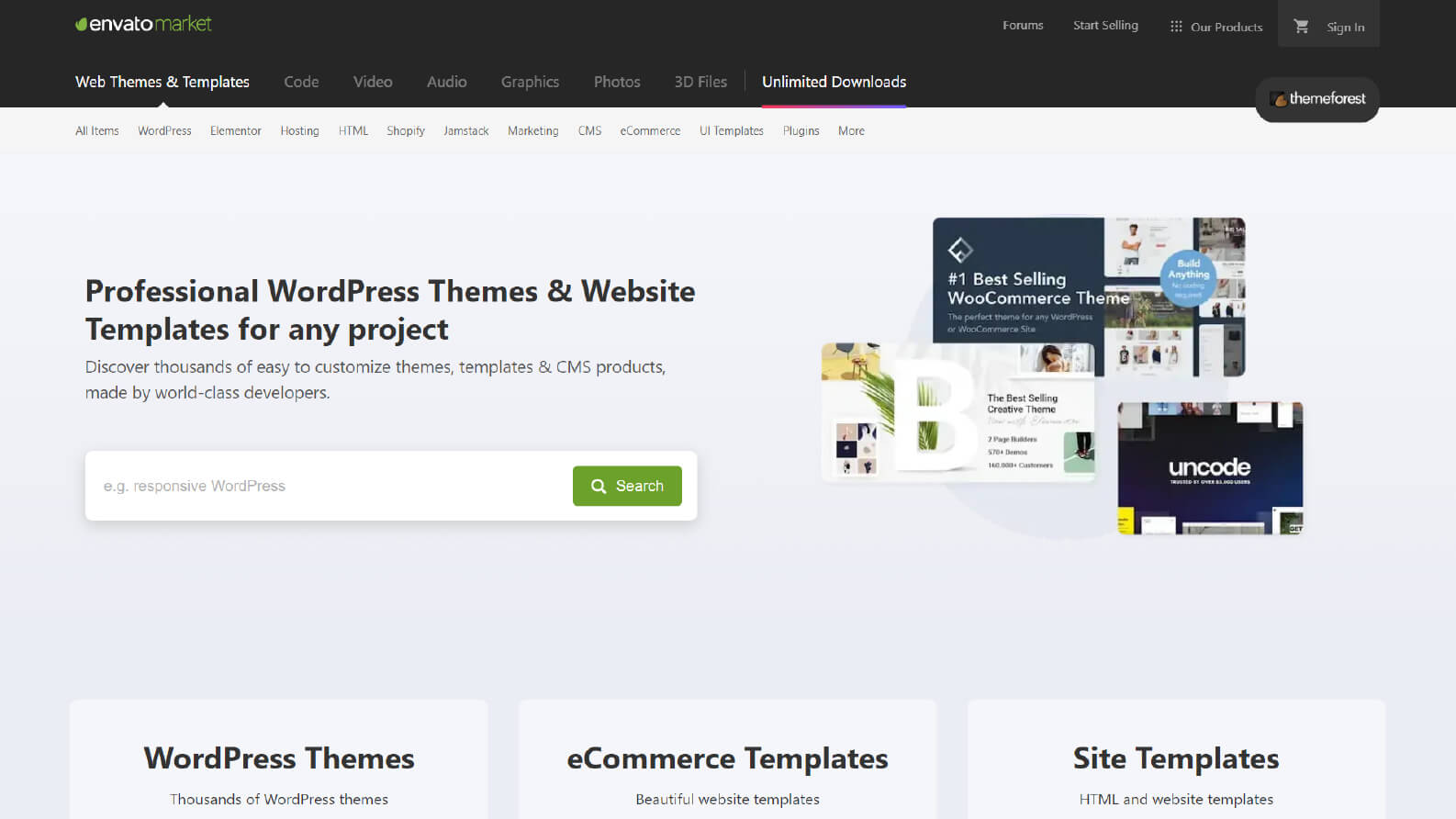
- Install Plugins and Themes from Trusted Sources
- Automatically Log Out Idle Users
- Monitor User Activity
- Disable File Editing in WordPress
- Restrict Access Using .htaccess
- Check for Malware Regularly
- Choose a Secure Web Hosting Provider
- Install an SSL Certificate
- Install a Web Application Firewall (WAF)
- Back Up Your Website Regularly
- Use a Comprehensive Security Plugin
- What to Do If Your WordPress Site Is Compromised
- Final Thoughts
Why is Website Security Important?
Website security is essential for protecting sensitive information such as usernames, passwords, personal details, and payment data from unauthorized access or misuse.
Security also ensures business continuity. A compromised website can lead to downtime, loss of customer trust, search engine penalties, and reputational damage. In 2025, surveys showed that 43 percent of small organizations affected by cyberattacks experienced moderate to significant operational disruption, highlighting the real business impact of weak security.
16 Most Effective Tips to Protect Your Website From Hackers
- Use Strong Passwords
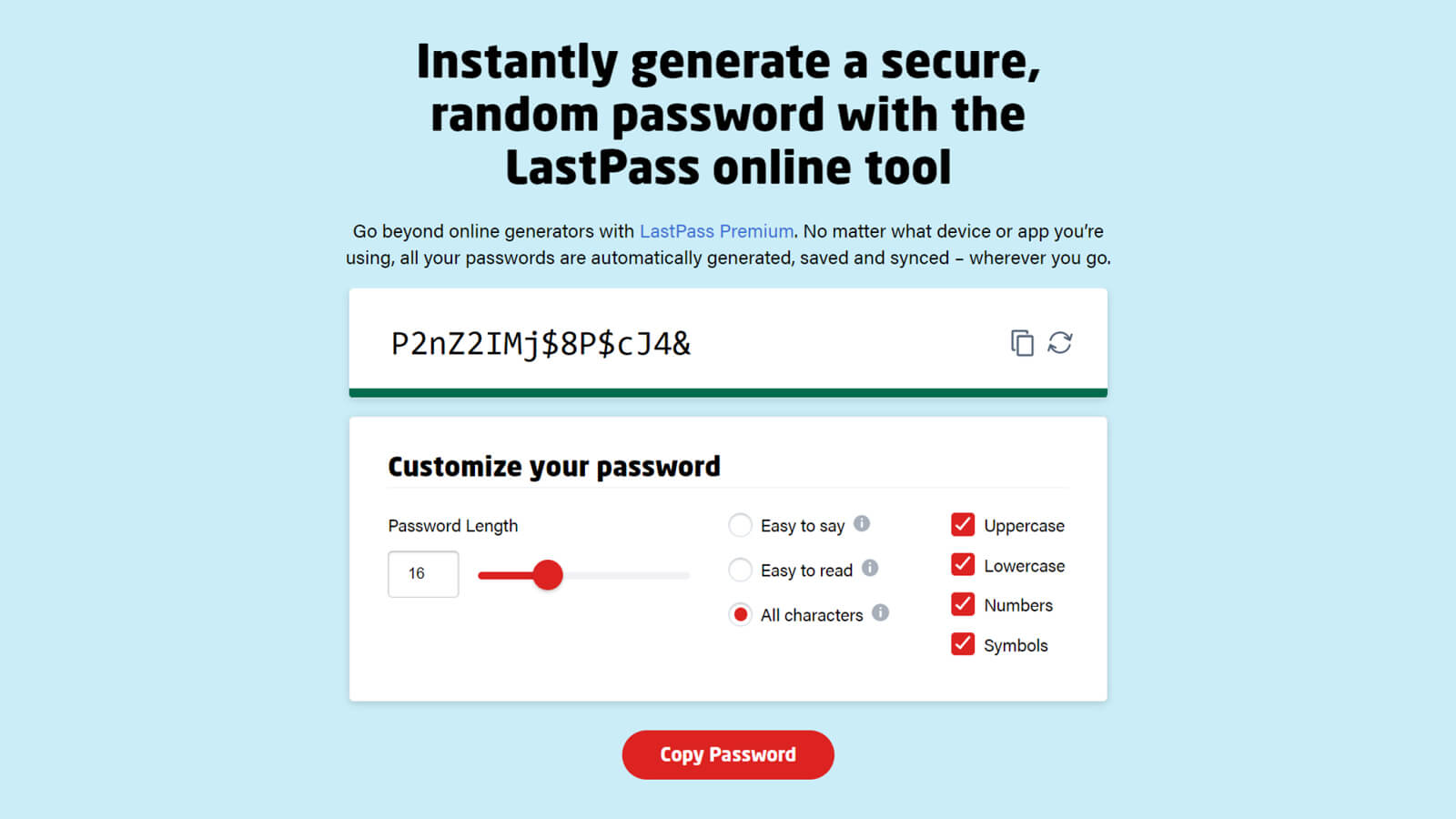
Strong and unique passwords significantly reduce the risk of unauthorized access. Weak credentials remain one of the most common entry points for attackers.
Best practices include:
- Passwords with at least 12 characters
- A mix of uppercase letters, lowercase letters, numbers, and symbols
- Avoiding predictable usernames such as “admin”
- Never reusing passwords across systems
Password manager tools such as LastPass can help generate and securely store credentials.
Ready to take your website to the next level?
Look no further! Let us help you create a scalable, secure, and performance-driven website as unique as your business.
- Limit Login Attempts
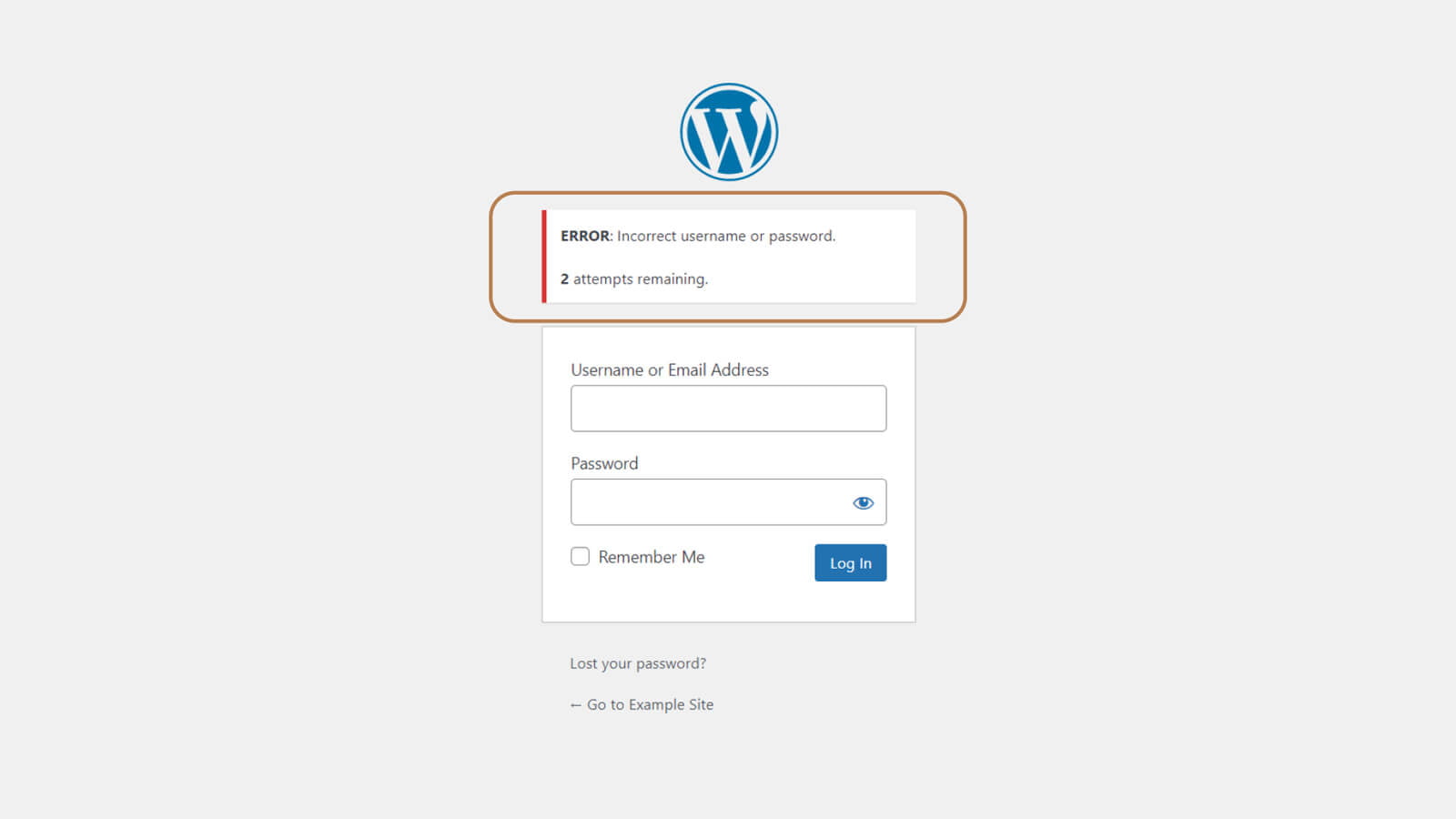
By default, WordPress allows unlimited login attempts, which exposes sites to brute-force attacks.
Security logs from 2025 show millions of automated login attempts targeting WordPress sites, even those with minimal traffic. Limiting login attempts blocks repeated failures and automatically bans abusive IP addresses.
Security plugins such as Wordfence, iThemes Security, or All-In-One WP Security help protect standard login pages, XML-RPC, WooCommerce, and custom login forms.
- Use Two-Factor Authentication (2FA)
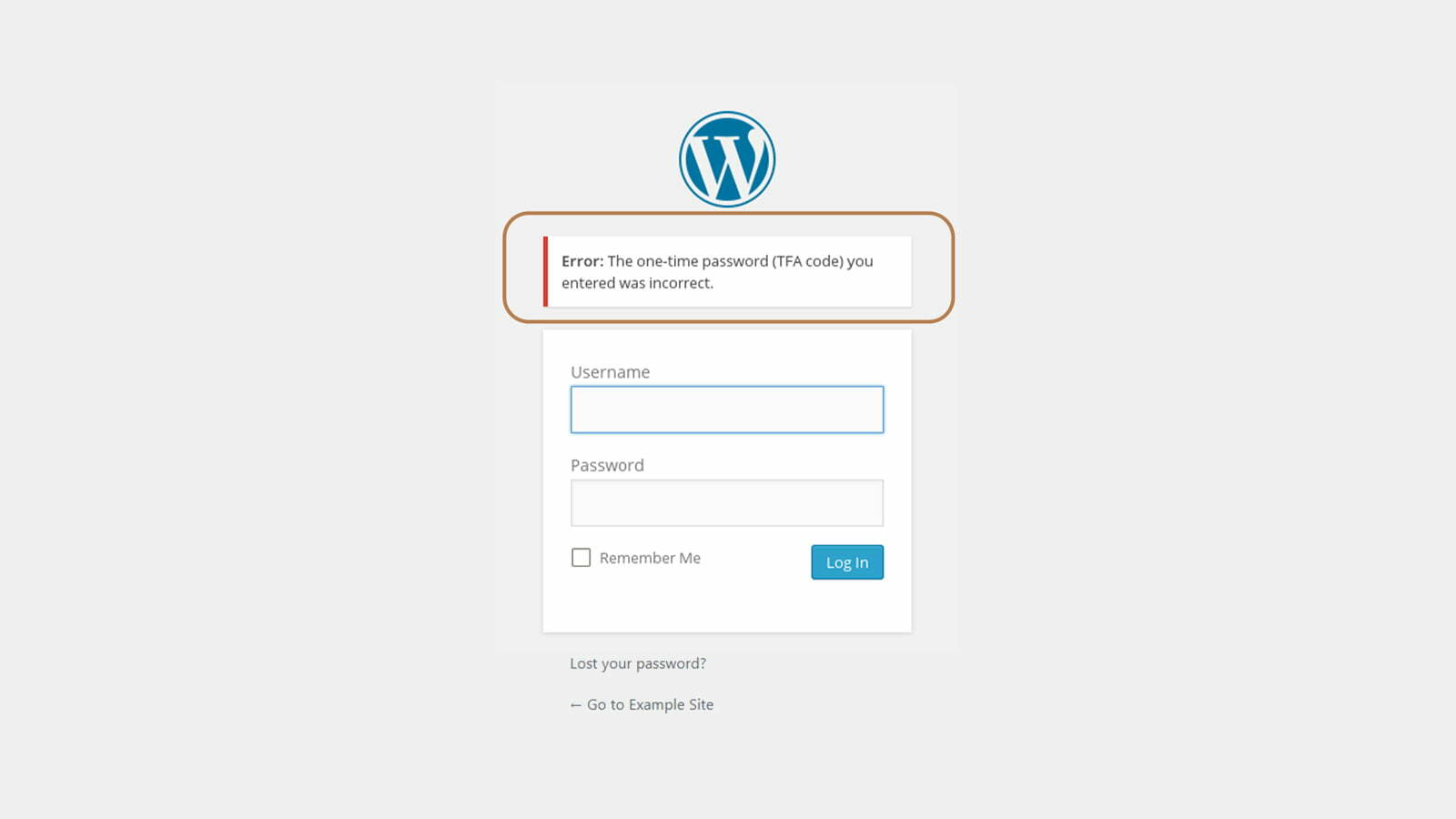
Two-factor authentication adds an additional layer of security to the login process. Even if a password is compromised, attackers cannot log in without the second verification factor.
Authentication apps are recommended over SMS or email for stronger protection. Enforcing 2FA for administrator and editor accounts significantly reduces the risk of account takeover.
- Keep Your Site Up to Date
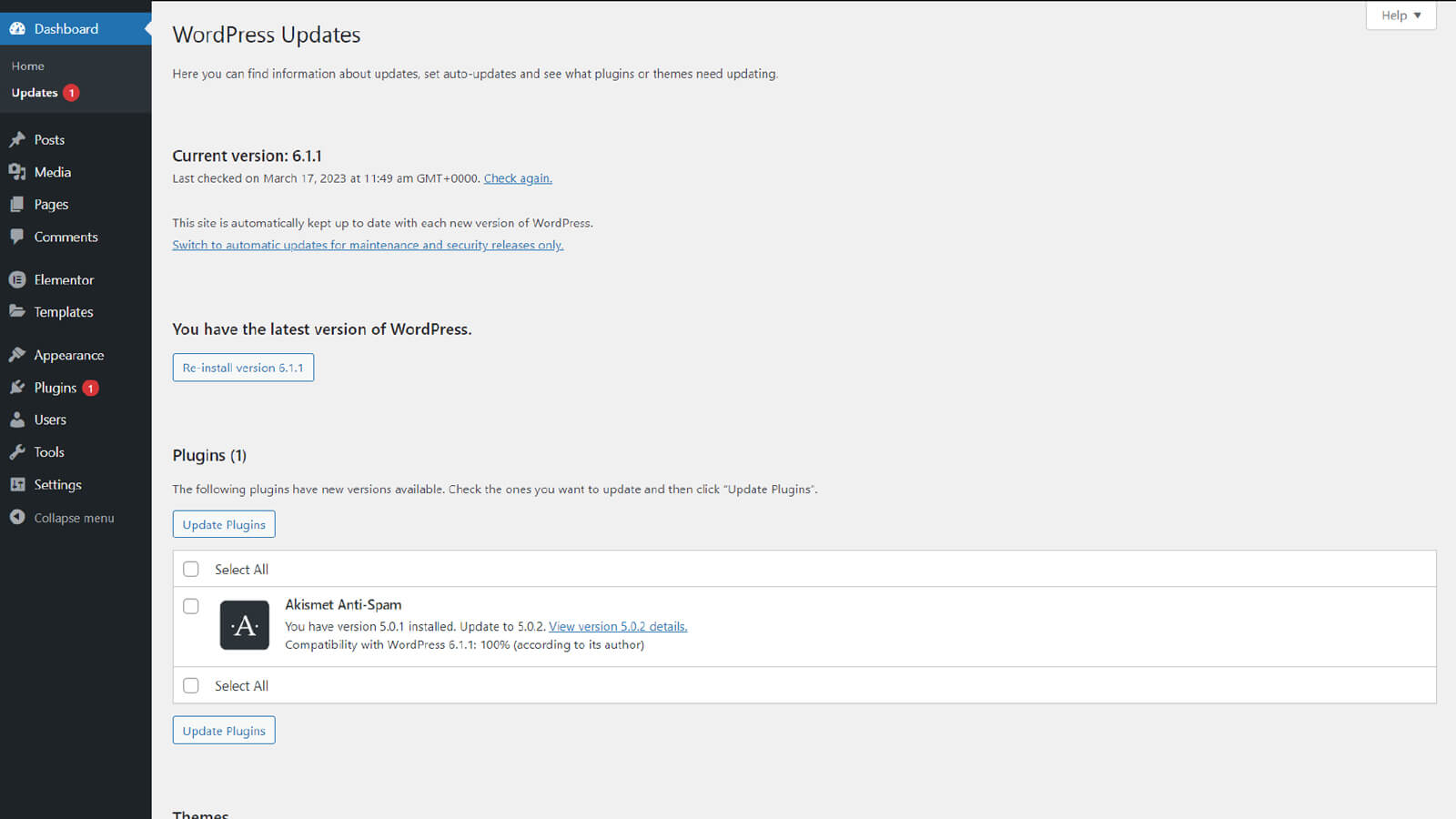
Outdated WordPress core files, plugins, and themes are a leading cause of security breaches.
In 2025, research showed that more than half of exploited WordPress vulnerabilities already had patches available, but those patches were not applied in time. Regular updates close known security gaps and reduce exposure to mass exploitation campaigns.
- Remove Unused Plugins and Themes
Plugins account for the overwhelming majority of WordPress vulnerabilities, and inactive plugins still contain executable code.
Best practices include:
- Deleting unused plugins and themes completely
- Avoiding abandoned or poorly maintained extensions
- Reducing plugin overlap where possible
Ready to take your website to the next level?
Look no further! Let us help you create a scalable, secure, and performance-driven website as unique as your business.
- Install Plugins and Themes from Trusted Sources
Only install plugins and themes from reputable sources such as the official WordPress repository or trusted commercial vendors.
Pirated or nulled plugins frequently contain malware, hidden backdoors, or obfuscated code that can compromise your site.
- Automatically Log Out Idle Users
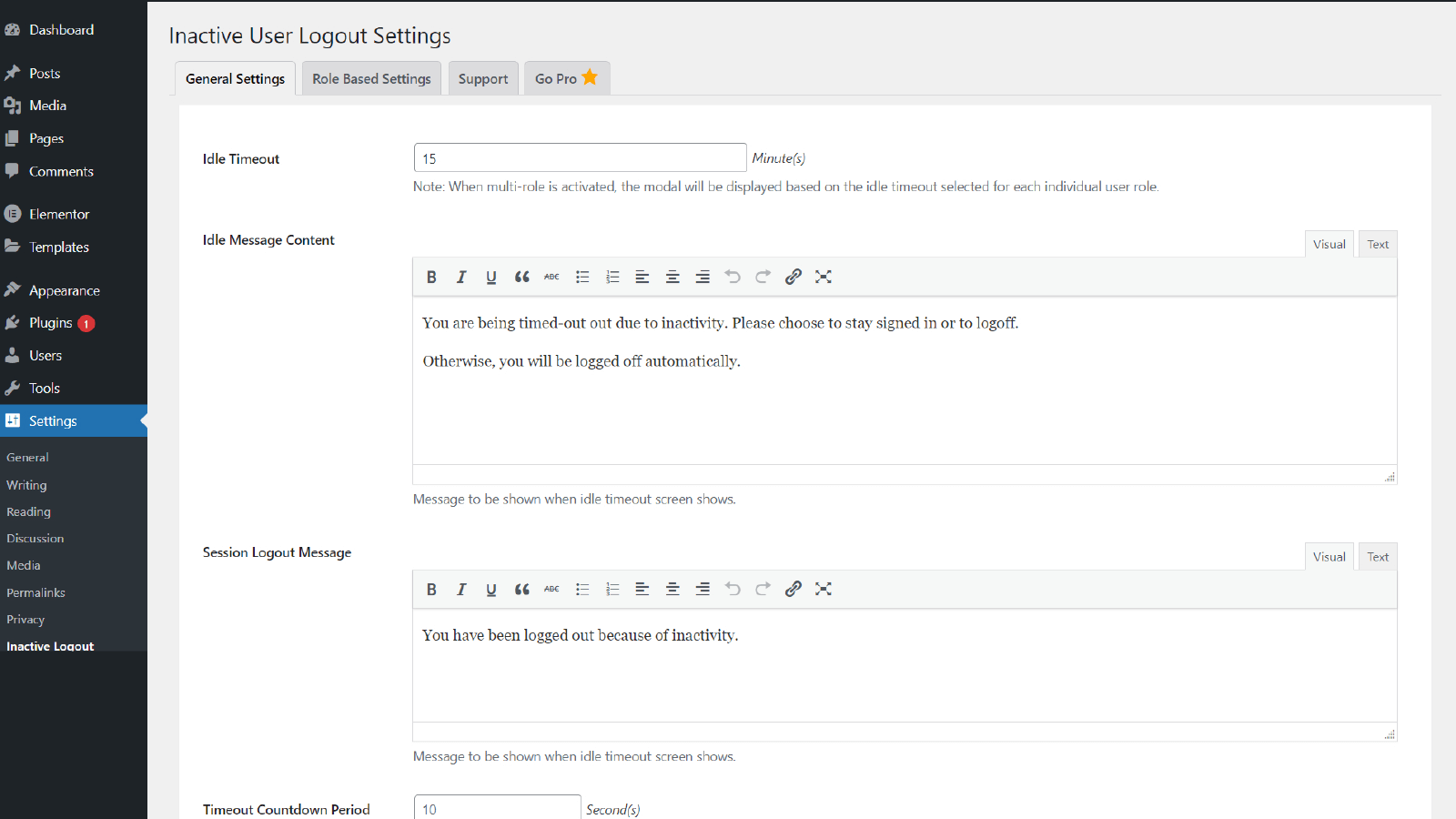
Idle login sessions can be hijacked, especially on shared or public devices.
Automatically logging out inactive users reduces the risk of session misuse and helps protect administrator accounts. Plugins like Inactive Logout effectively enforce session timeouts.
- Monitor User Activity
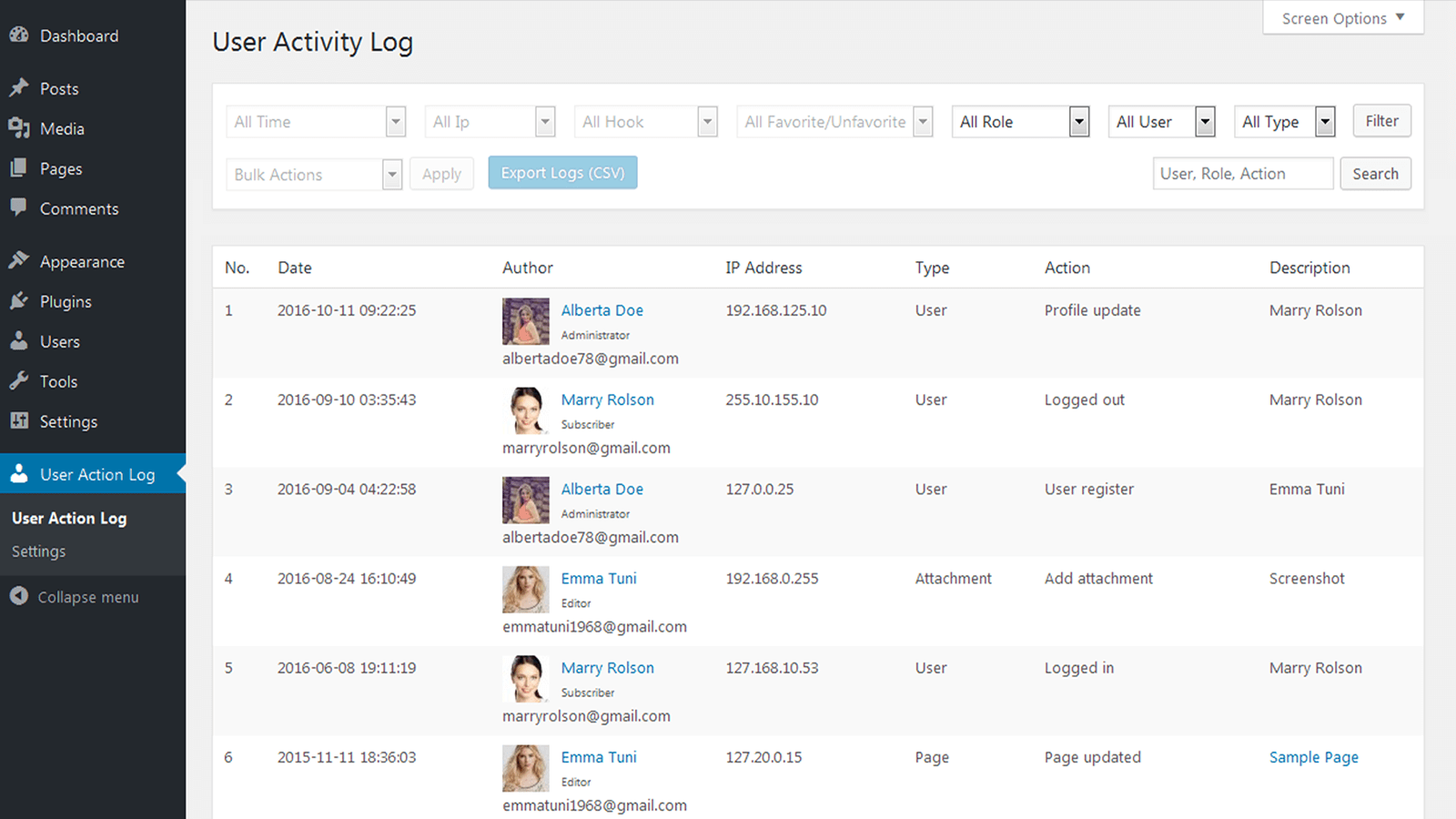
Monitoring user activity is critical for WordPress sites with multiple users.
You should track:
- Login and logout activity
- New user creation
- Plugin and theme installation or removal
- Changes to pages and posts
In many security incidents, attackers created hidden administrator accounts after gaining access. Activity logs help detect these actions early.
- Disable File Editing in WordPress
The built-in file editor in the WordPress dashboard allows you to directly modify theme and plugin files.
Security incident reports show attackers frequently use this feature to inject malicious code after gaining admin access. Disabling file editing removes this attack path entirely.
Add the following line to your wp-config.php file:
define( 'DISALLOW_FILE_EDIT', true );Ready to take your website to the next level?
Look no further! Let us help you create a scalable, secure, and performance-driven website as unique as your business.
- Restrict Access Using .htaccess
Server-level protections provide an additional security layer.
Using the .htaccess file, you can:
- Block access to sensitive files such as
wp-config.php - Disable directory browsing
- Restrict PHP execution in upload directories
These measures limit exposure even if WordPress credentials are compromised.
- Check for Malware Regularly
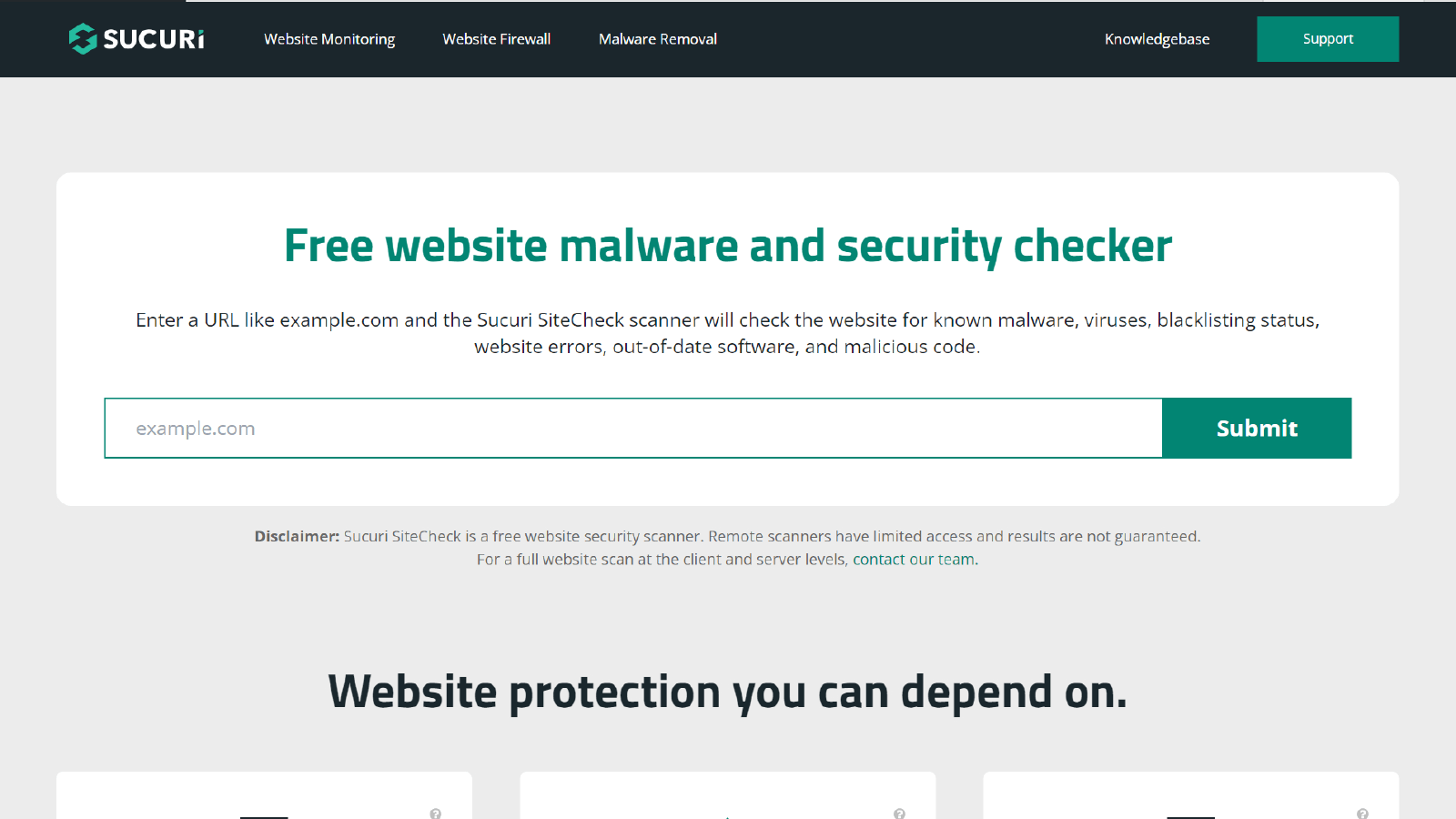
In a single month of 2025, over 100,000 WordPress sites were found to be infected with malware, including many that already had security plugins installed.
Regular malware scans help identify backdoors, injected scripts, and blacklisting risks early. Keeping scan logs also helps identify recurring threats.
- Choose a Secure Web Hosting Provider
Your hosting provider plays a critical role in website security.
Secure hosting providers offer:
- Server-level firewalls
- Malware monitoring
- Account isolation
- Automated backups
- 24/7 incident response support
Low-quality shared hosting environments increase the risk of cross-site contamination and prolonged recovery times.
- Install an SSL Certificate
SSL encrypts data exchanged between your website and its users.
HTTPS is essential for login pages, contact forms, and eCommerce transactions. It is also a Google ranking signal and a trust indicator for visitors.
You can obtain an SSL certificate from a trusted Certificate Authority (CA), such as Comodo or Symantec. You can also get an SSL certificate from Let’s Encrypt, a non-profit Certificate Authority (CA) that provides free SSL/TLS certificates for website owners.
Ready to take your website to the next level?
Look no further! Let us help you create a scalable, secure, and performance-driven website as unique as your business.
- Install a Web Application Firewall (WAF)
A Web Application Firewall filters malicious traffic before it reaches your website.
In 2025, security providers reported blocking millions of malicious requests per day using WAFs, including SQL injection, cross-site scripting, and denial-of-service attacks.
Popular WAF solutions include Sucuri, Cloudflare, Wordfence, and Jetpack.
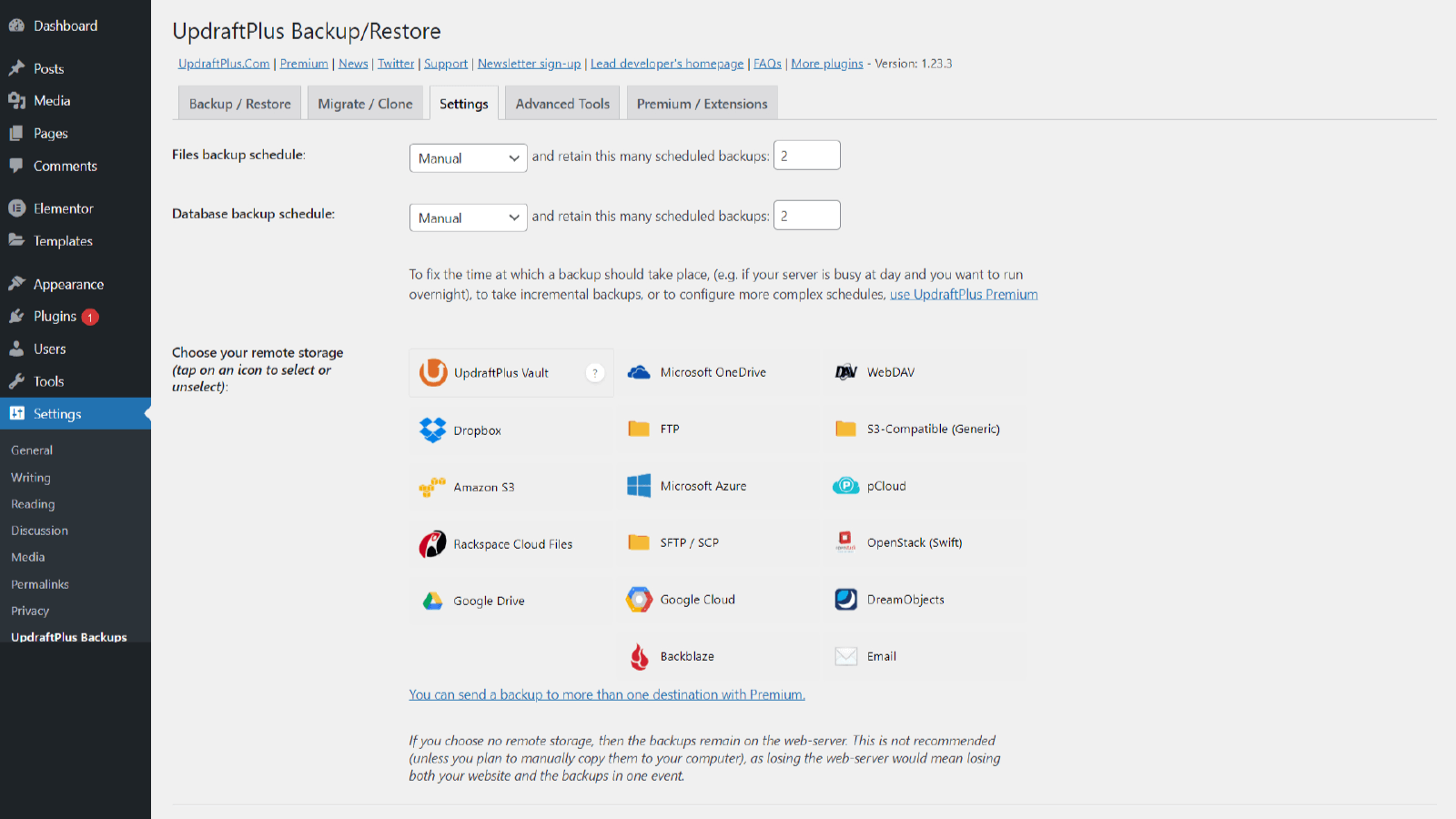
- Back Up Your Website Regularly
Backups are your final line of defense.
Sites without reliable backups experience longer downtime and higher recovery costs after security incidents. Automated, off-site backups allow quick restoration if something goes wrong.
- Use a Comprehensive Security Plugin
Security plugins combine prevention, detection, and monitoring features into a single solution.
However, 2025 incident data showed that security plugins alone do not eliminate risk, reinforcing the importance of layered security rather than relying on a single tool.
What to Do If Your WordPress Site Is Compromised
Despite strong preventive measures, no website is completely immune to security incidents. What matters most is how quickly and effectively you respond.
If you suspect your WordPress site has been compromised, take the following steps immediately:
- Isolate the Website
Temporarily restrict access to prevent further damage. This may include taking the site offline, disabling user access, or placing the site in maintenance mode.
- Reset All Credentials
Change passwords for:
- WordPress administrator accounts
- Hosting control panel
- FTP or SSH access
- Database users
Enable two-factor authentication where possible.
- Scan and Identify the Infection
Run a full malware scan to locate injected code, backdoors, and unauthorized file changes. Review file integrity logs and compare against clean backups.
- Restore From a Clean Backup
If available, restore the site from a verified backup taken before the compromise. Ensure the vulnerability that caused the breach is fixed before restoring.
- Review Logs and Close the Attack Vector
Analyze access logs, activity logs, and firewall alerts to identify how the attacker gained entry. Apply updates, remove vulnerable plugins, and harden configurations accordingly.
- Monitor Closely After Recovery
Increase monitoring frequency for several weeks to ensure the threat has been fully contained and no persistence mechanisms remain.
A documented incident response process significantly reduces downtime, data loss, and reputational damage.
Final Thoughts
WordPress security is not about installing one plugin and hoping for the best. Effective protection requires layered controls, regular updates, monitoring, and proactive maintenance.
Ready to take your website to the next level?
Look no further! Let us help you create a scalable, secure, and performance-driven website as unique as your business.
Saved you time?  to say thanks!

Karingithi Benard
Karingithi Benard is an SEO Specialist, Wordpress Developer and a Digital Designer with over 7 years of experience delivering secure, performance-driven WordPress websites across healthcare, eCommerce, technology, travel, and entertainment.